Cloning your laptop hard drive is one of the smartest moves you can make before upgrading your storage, replacing a failing drive, or safeguarding your data. Whether you want to clone HDD to SSD for faster performance or move Windows to another drive without reinstalling everything, disk cloning gives you a perfect duplicate of your system exactly as it is. At Ask Computers, we often help customers who are unsure how to clone a hard drive safely, especially when they are switching to an SSD for better speed and reliability.
In this in depth guide, you will learn how to clone your laptop hard drive step by step using reliable disk cloning software. We will also explain how free disk cloning software works, when to use professional cloning services, and how to avoid common mistakes that lead to data loss. If you want a complete solution that actually works in the real world, not just theory, this guide is built for you.
Understanding What Hard Drive Cloning Really Means
Many people confuse cloning with backing up. While both protect your data, cloning goes a step further. When you clone a hard drive, you create an exact real time copy of your entire drive including Windows, applications, files, settings, partitions, and boot records. This means when you install the cloned drive, your laptop boots exactly like the old one with no setup required.
This is why clone drive solutions are widely used when replacing aging hard drives, upgrading to SSDs, or moving Windows to another drive. Instead of reinstalling everything manually, cloning software does the work for you in a fraction of the time.
At Ask Computers, most clients choose to clone HDD to SSD because SSDs dramatically improve boot times, software loading, and overall laptop performance. If your laptop feels slow even after cleanup, cloning to an SSD is often the real fix.
When You Should Clone a Hard Drive
You should consider using cloning software in several high value situations. If your current hard drive is failing and showing signs like slow performance, freezing, or boot errors, cloning lets you rescue everything before complete failure. If you are upgrading storage capacity or switching from HDD to SSD, cloning allows you to move Windows to another drive without reinstalling the operating system. If you want an instant recovery solution in case of future problems, a cloned backup drive can restore your laptop in minutes.
Many of our customers at Ask Computers come in right after buying a new SSD and ask how to clone HDD to SSD safely. Cloning ensures their system stays exactly the same while gaining massive speed improvement.
What You Need Before Starting the Cloning Process
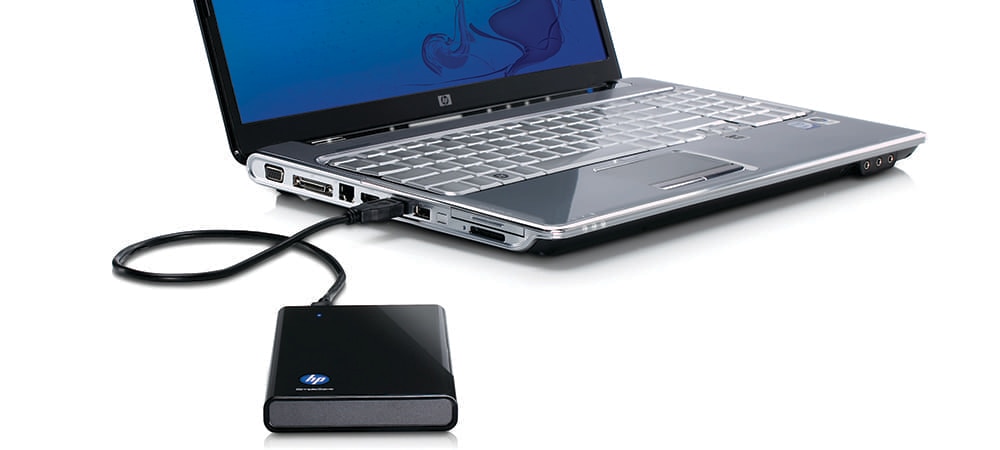
Before you begin learning how to clone a hard drive, it is important to prepare properly. You will need a new hard drive or SSD with enough capacity to hold all your existing data. You will need a USB to SATA adapter or an external enclosure so you can connect the new drive to your laptop. You will also need reliable disk cloning software installed on your system.
The most important part of this setup is choosing the right cloning software. There are many free disk cloning software options available that work very well when used correctly. However, not all free tools handle boot partitions correctly, which is why professional selection matters.
At Ask Computers, we test multiple free hard drive cloning software tools before recommending the most stable option for each system type.
Choosing the Right Disk Cloning Software
Disk cloning software is the engine that makes the entire process work. Without proper cloning software, the process can fail midway or create a non bootable clone. The goal is to choose a cloning software that supports your file system, properly copies system partitions, and allows clone drive operations without corruption.
Many free disk cloning software tools are available online, but not all handle SSD alignment properly when you clone SSD drives. Improper alignment can reduce performance and shorten SSD lifespan. This is one of the major technical details most people overlook.
If you are unsure which free hard drive cloning software works best for your laptop, Ask Computers can select, configure, and run the entire process safely for you.
How to Clone a Hard Drive Step by Step in Real World Conditions
Once the preparation is complete, the actual cloning process is straightforward when done correctly. After connecting your new drive to the laptop using an enclosure or adapter, the cloning software will detect both your old drive and the new one. You then select your original drive as the source disk and the new SSD or HDD as the destination disk.
Next, you choose full disk clone mode so the entire operating system is copied. If you are moving from a larger drive to a smaller SSD, the software will resize partitions automatically as long as your used space is smaller than the SSD capacity.
Once the cloning process starts, it can take anywhere from ten minutes to several hours depending on the size of your data and the speed of your hardware. During this stage, it is extremely important not to interrupt the process, shut down the laptop, or disconnect the drive.
After the cloning software confirms completion, you shut down your laptop, remove the original hard drive, and install the cloned drive in its place. When powered on, the laptop should boot exactly as before, only much faster if you cloned HDD to SSD.
This is the most reliable method to move Windows to another drive without reinstalling anything.
Common Problems People Face During Drive Cloning
One common issue people face when learning how to clone hdd to ssd is boot failure after installation. This usually happens when the wrong boot partition was copied or the hardware boot mode is mismatched. Another issue occurs when disk cloning software is incompatible with system encryption such as BitLocker.
We also see cases where users choose unreliable free disk cloning software that skips hidden system files, resulting in incomplete clones. At Ask Computers, these problems are avoided by properly identifying system structure, encryption status, and firmware type before starting the process.
The Difference Between Cloning an HDD and Cloning an SSD
Cloning an HDD and cloning an SSD follow the same logic but require different handling. When you clone SSD drives, proper partition alignment is critical for performance and longevity. When you clone HDD drives, sector compatibility and fragmentation handling become more important.
Another key difference is speed. SSD cloning completes much faster compared to HDD cloning because SSDs process data more efficiently. If your laptop still uses a mechanical hard drive, upgrading by using clone hdd to ssd is one of the biggest performance upgrades you can make.
Is Free Hard Drive Cloning Software Safe to Use
Free hard drive cloning software can be safe and reliable if used properly. Many advanced free tools handle system partitions, boot records, and SSD alignment correctly. However, free tools often lack live support and advanced recovery options if something goes wrong.
At Ask Computers, we often use professional grade tools for sensitive cloning jobs involving business laptops, encrypted drives, or failing hard drives. For home upgrades and healthy drives, free disk cloning software may work perfectly under proper supervision.
How Long Does It Take to Clone a Hard Drive
The time required to clone a hard drive depends on drive size, drive type, and data condition. A lightly used 256 GB SSD clone may finish within fifteen minutes. A heavily loaded 1 TB HDD can take several hours. Slow USB adapters and failing drives can also increase the cloning duration.
This is why professional cloning services are preferred when critical data is involved.
Why Cloning Is Better Than Reinstalling Windows
Reinstalling Windows means reinstalling every driver, application, update, and user setting manually. Cloning software bypasses all that work by moving Windows to another drive exactly as it exists. Your desktop layout remains the same. Your software licenses remain intact. Your files remain in the same folders.
This is the biggest reason most users prefer to clone drive solutions rather than reinstalling everything from scratch.
When Not to Clone a Hard Drive
Cloning may not be ideal if your current Windows installation is corrupted, infected with malware, or unstable. In such cases, cloning simply transfers the problem to the new drive. A fresh installation might be the better option. This is where professional diagnosis matters before performing any clone operation.
Why Choose Ask Computers for Professional Drive Cloning
At Ask Computers, we specialize in safe and accurate laptop storage upgrades and data protection services. Our technicians understand the technical differences between HDD and SSD cloning, firmware configurations, and file system structures. We do not rely on guesswork or risky shortcuts.
We use advanced disk cloning software, verify boot integrity, ensure data accuracy, and test system stability after every clone. Whether you want to clone hdd to ssd, clone drive for backup, or move Windows to another drive for performance upgrades, our services ensure your data is transferred without damage or downtime.
Frequently Asked Questions About Cloning a Laptop Hard Drive
Q. What is the safest way to clone a hard drive on a laptop?
The safest way to clone a hard drive on a laptop is by using trusted disk cloning software and connecting your new drive through a secure USB to SATA adapter. The cloning process should always be done while the laptop is connected to stable power. A verified clone drive ensures that Windows, files, and programs transfer without corruption or boot errors.
Q. How do I clone a hard drive without reinstalling Windows?
You can clone a hard drive without reinstalling Windows by using cloning software that copies the full system partition, not just files. This allows you to move Windows to another drive exactly as it exists, including all applications, licenses, and personal settings.
Q. Which free disk cloning software is best for Windows laptops?
Several free disk cloning software tools work well for Windows laptops, but the best option depends on your drive type and system structure. Free hard drive cloning software is suitable for healthy drives, but advanced systems or encrypted laptops may require professional cloning tools.
Q. Can I clone HDD to SSD and keep everything the same?
Yes, you can clone HDD to SSD and keep everything exactly the same, including Windows, software, and personal files. Once the clone is complete and the SSD is installed, your laptop will boot normally with significantly improved performance.
Q. How long does it take to clone a laptop hard drive fully?
The time it takes to clone a laptop hard drive depends on storage size, drive speed, and data condition. Small SSD clones can take under thirty minutes, while large hard drives with heavy data can take several hours to complete safely.
Q. Will cloning software copy Windows and all installed programs?
Yes, proper cloning software copies Windows, system files, drivers, installed programs, saved settings, and personal data in one complete process. This allows users to move Windows to another drive without losing functionality.
Q. Can I clone my drive even if my hard drive is failing?
In many cases, a failing hard drive can still be cloned if the damage is not severe. However, if the drive has unreadable sectors, professional recovery tools may be required before cloning. The earlier the cloning is attempted, the higher the success rate.
Q. Does cloning a hard drive delete anything from my original drive?
No, cloning a hard drive does not delete or modify data on your original drive. It simply creates an exact copy on the new drive while leaving the original unchanged.
Q. Should I use free hard drive cloning software or professional service?
Free hard drive cloning software is suitable for basic upgrades when drives are in good condition. Professional cloning is recommended for business systems, encrypted drives, failing hard drives, or when protecting critical data is a priority.
Q. What is the difference between clone HDD to SSD and clone SSD to SSD?
When you clone HDD to SSD, the main benefit is a major boost in speed and system responsiveness. When you clone SSD to SSD, the purpose is usually to increase storage capacity or replace a faulty SSD. Both processes use similar cloning software but require different performance settings.
Q. Can I use a cloned drive in another laptop?
A cloned drive is optimized for the original laptop hardware. Using it in a different laptop may cause driver conflicts or boot issues. In some cases, it may work with additional system adjustments, but it is not guaranteed.
Q. Will cloning my hard drive improve my laptop speed?
Yes, cloning from a traditional hard drive to an SSD significantly improves boot time, application launch speed, and overall performance. This is one of the most effective laptop upgrades available.
Q. Is cloning a drive better than reinstalling Windows?
Cloning is better than reinstalling Windows because it preserves your entire system environment, including programs, licenses, and personal files. Reinstalling Windows requires rebuilding everything from the beginning.
Q. Can I clone a drive without removing my existing laptop hard drive?
Yes, you can clone your drive without removing the original hard drive by using a USB to SATA adapter or an external drive enclosure. This allows you to perform the clone safely while your original drive remains inside the laptop.
Q. What should I do after successfully cloning my hard drive?
After successfully cloning your hard drive, you should power off your laptop, replace the old drive with the cloned one, and boot the system to verify everything works correctly. Once confirmed, the original drive can be stored as a backup.
Final Thoughts on Cloning Your Laptop Hard Drive
Understanding how to clone a hard drive gives you complete control over your data security and system performance. Whether you are switching to an SSD for speed, replacing a failing drive, or preparing a full backup, cloning software makes the transition smooth and stress free.
A successful clone drive operation means no reinstallation, no lost files, and no learning curve. Your laptop works exactly as before, only faster, stronger, and more reliable.