
iPhone Screen Flickering: Causes, Fixes and When to Repair
A flickering iPhone screen has one of two causes: a software setting or glitch that you can fix in a few minutes, or a failing display or connection that only a repair will fix. The way to tell them apart is to watch when it flickers. Flicker that follows brightness, one app or an update is usually software. Flicker with coloured lines, a green tint, or one that started after a drop or water is usually hardware. This guide walks you through both, in the order that wastes the least of your time. If you land on the hardware side in Toronto, our iPhone repair team can look at the phone, with free estimates and walk-ins welcome.
- Flicker that changes with brightness, or happens in one app, is usually software. Restart, update and check display settings first.
- Flicker with lines, a green or pink tint, black patches, or that began after a drop or liquid exposure points to the display or its cable.
- If the flicker shows on the Apple logo while the phone starts, iOS is not the cause.
- Back up the phone as soon as you suspect hardware: a failing screen can go black without warning.
- We repair iPhone screens in Toronto, carry many iPhone parts in stock, and give free estimates.
Table of Contents
- Software or hardware: the 60-second sort
- The safe fixes, in order
- What flicker with lines, green tint or black patches means
- Why the display is only half the story
- What a good screen repair should include
- What does iPhone screen repair cost in Canada?
- Bring it in: what to expect at our Toronto shop
- Keeping the flicker from coming back
- FAQ
- Sources
Software or hardware: the 60-second sort
Before you change any setting, spend a minute noticing the pattern. It saves you from reinstalling apps when the real problem is a loose cable, and from booking a repair when the fix is a toggle.
| What you see | More likely | Start with |
|---|---|---|
| Flicker only at low brightness or in dim rooms | Software or display design | Brightness and motion settings |
| Flicker in one app only | Software | Update or reinstall that app |
| Flicker started after an iOS update | Software | Restart, then update again |
| Flashing light on calls and alerts | A feature, not a fault | Accessibility audio and visual settings |
| Coloured lines, green or pink tint, black patches | Hardware | Back up, then book a repair |
| Flicker began after a drop, water or heat | Hardware | Back up, then book a repair |
| Flicker visible on the Apple logo at startup | Hardware | Book a repair |
This split follows the software and hardware sorting PhoneGuiding describes, including the point that flicker visible before iOS loads cannot be an app problem. It is a quick guide, not a diagnosis. A repair technician confirms it by looking at the screen and the connection behind it.
The safe fixes, in order
Work down this list and stop when the flicker stops. None of these steps risk your data or your phone.
1. Restart the iPhone
Apple’s own guidance for a screen that is not working starts here. A restart clears temporary glitches in the display pipeline, and it costs nothing. If the screen is unresponsive and you cannot use the normal power-off slider, Apple’s screen troubleshooting page links to the force restart steps for your model.
2. Clean the screen and remove the case
Apple’s steps also say to clean the screen of debris or water, and to take off any case or screen protector. A thick case or a badly fitted protector can press on the edges of the display, and moisture along the edge can make the touch layer misbehave. Wipe with a dry, lint-free cloth and check again.
3. Unplug accessories and change the charger
Disconnect anything plugged into the Lightning or USB-C port. If the flicker stops, Apple suggests trying a different outlet, cable or charger. A cheap or worn cable can cause electrical noise that shows up on the screen while charging. If the flicker only appears while charging, even with a known good cable, the charging port area is worth a look, and our technicians can check that as part of the same visit.
4. Check brightness settings
Apple’s brightness and colour temperature guide explains that Auto-Brightness uses the ambient light sensor and is on by default. If brightness is not adapting properly, you can switch Auto-Brightness off and back on under Settings > Accessibility > Display & Text Size. True Tone and Night Shift live under Settings > Display & Brightness. Turn each off in turn to see whether the flicker follows one of them.
5. Try the motion and flashing options
Apple’s onscreen motion settings include several that change how the display behaves:
- Dim Flashing Lights and Reduce Bright Effects, under Settings > Accessibility > Display & Text Size.
- Limit Frame Rate, under Settings > Accessibility > Motion, which caps ProMotion displays at 60 frames per second.
- Display Pulse Smoothing, offered on supported models, for smoother dimming at low brightness.
That last one matters because of how iPhone screens dim. Apple states that iPhone uses pulse-width modulation (PWM) to control brightness. In plain terms, the screen switches rapidly on and off to look dimmer, and some people notice that as flicker at low brightness. If your flicker is only at the lowest brightness and you see no lines or colour changes, that is a settings question, not a broken screen.
6. Look at the flashing on calls and alerts
If the screen or the camera light flashes when you get a call or notification, you may have switched on a feature by accident. iDownloadBlog notes that this is often the Flash for Alerts accessibility option, found under Settings > Accessibility > Audio & Visual. Turn it off and the flashing goes with it.
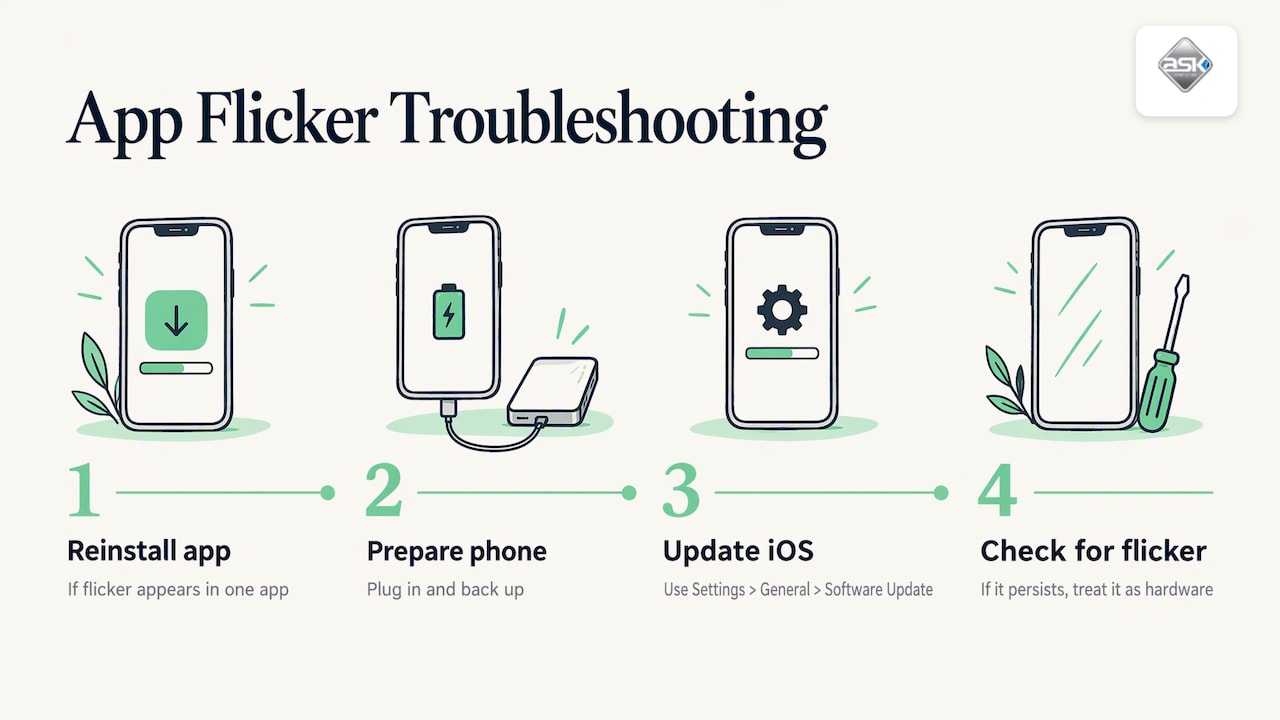
7. Update iOS and reinstall the troublesome app
If the flicker appears in one app, delete and reinstall that app, then update iOS under Settings > General > Software Update. Software bugs are usually fixed in point releases. Keep the phone plugged in and backed up before updating.
If you have worked through all seven and the screen still flickers, treat it as hardware. Further resets and restores rarely change that, and they take time you could spend on a repair.
What flicker with lines, green tint or black patches means
A flickering display after a drop is the classic hardware case. You do not need a visible crack. A hard fall can shift the display connector on the logic board, stress the flex cable that carries the picture signal, or damage the panel itself. Heat and moisture do similar harm over time.
The symptoms that point this way:
- Horizontal or vertical lines that come and go.
- A green, pink or purple tint, or a green flash.
- Black patches, or a screen that dims and recovers on its own.
- Touch that jumps or misses taps while the picture flickers.
- Flicker that appears when you press near the top or bottom edge of the glass.
The cause behind them is usually one of four things, which PhoneGuiding lists as a damaged display panel, a loose or damaged display cable, a failing logic board, or water damage. The first two are straightforward screen repairs. The last two are why it matters who opens the phone.
There is a well-known precedent for drop-related flicker. Apple ran a Multi-Touch repair programme for the iPhone 6 Plus after finding that some units showed display flickering and Multi-Touch problems after repeated drops on a hard surface. It shows that flicker after impact is a recognized hardware failure, not something in your imagination.
Back up now
If you suspect hardware, back up before anything else. A damaged flickering screen can go black without warning, and once it does, backing up becomes much harder. Use iCloud or connect to a computer while you can still see and tap. If the screen has already gone dark and your photos are not backed up, say so when you bring the phone in, so the repair is planned around your data.
Why the display is only half the story
Most flicker repairs end with a new display. But a screen swap only fixes the problem if the screen was the problem. Two situations are different.
Liquid damage. If the phone got wet, corrosion can reach the connectors and the logic board, and a new screen will flicker just like the old one. The repair has to deal with the board.
A logic board fault. A fault in the board’s display circuitry can mimic a bad panel. Many shops replace the whole board or the phone when that happens. We repair logic boards with micro-soldering, which means fixing the damaged components on the board instead of replacing it. For a flickering phone where a new display does not solve it, that is the difference between a repair and a replacement. You can read more about our micro-soldering and logic board repair.
What a good screen repair should include
Parts quality decides whether the flicker stays gone. Apple’s Canadian page on genuine iPhone displays (updated October 2026) warns that non-genuine display parts can cause Multi-Touch failures, a faulty ambient light sensor that makes the screen dim or brighten incorrectly, wrong colour calibration, uneven brightness, and extra battery drain. Those are the problems you want to leave the shop without.
Two practical points follow from that page:
- On iPhone 11 and later, you can open Settings > General > About > Parts and Service History to see whether the display was replaced with a genuine Apple part. An “Unknown” part message appears when the display is not genuine, is not working as expected, or has not been verified after repair. Apple notes it may affect trade-in value.
- Ask any repairer which part they will fit and what warranty comes with the work. A poor panel can bring the flicker back or cost you True Tone, as PhoneGuiding points out.
We carry many iPhone parts in stock, so for common models the part is on the shelf rather than on order, which keeps turnaround quick. Our iPhone screen repair page covers what we handle.
What does iPhone screen repair cost in Canada?
The price depends on the model, the part and whether the screen is the only fault. We do not publish fixed prices on our site, so the honest answer is that we give you a free estimate once we have seen the phone. That is the right way to price it: a flickering phone can need a connector reseat, a screen, or board work, and those are very different jobs.
Some context from Apple’s Canadian pages, which are useful whoever does the repair:
- Apple says out-of-warranty service estimates are for Apple service, may be subject to tax, and are confirmed after inspection. Independent and authorized providers set their own fees, per its Canadian repair page.
- If you hold AppleCare+, Apple lists screen or back glass repairs at a service fee of $39 to $129, and other accidental damage such as liquid at a flat $129 fee. The plan itself is listed from $10.49 a month or $104.99 a year.
- Apple’s one-year Limited Warranty covers manufacturing issues, not accidental damage, according to the same Apple repair page. A flicker after a drop falls on the accidental side.
If you are weighing a repair against a new phone, our guides on iPhone glass repair versus a new device and iPhone 14 repair costs versus upgrading set out the thinking. As a rule of thumb, if the phone is otherwise healthy, a repair that costs a fraction of a new device is usually the better outcome, and it keeps your data and set-up exactly as they are.
Bring it in: what to expect at our Toronto shop
We are a Toronto repair shop with over 15 years of experience on iPhones, MacBooks and other laptops. For a flickering iPhone, a visit looks like this:
- Walk in. No appointment is needed. Tell us when the flicker started and whether the phone was dropped or got wet.
- Free estimate. We look at the phone and tell you what it needs and what it costs before any work starts.
- Repair. Screen replacement, battery replacement, charging-port work or logic board micro-soldering, depending on the fault. Parts for many iPhone models are in stock.
- Check. You see the phone working before you pay.
If the phone is a work device, or you have several to look at, tell us at the counter. We also repair iPads, MacBooks and Windows laptops, so one stop can cover the lot.
Our iPhone repair page lists what we fix, including screens and batteries. If you want a short checklist before you hand over any phone, read 5 things to check before your iPhone screen is repaired.

Keeping the flicker from coming back
Once the screen is fixed, a few habits protect it:
- Use a case with a raised lip around the glass, and a screen protector that fits the edges without pressing on them.
- Charge with a good-quality cable and charger.
- Keep the phone out of hot cars and away from steam in bathrooms and kitchens.
- If it ever gets wet, power it off and do not charge it. Bring it in quickly, because corrosion spreads with time.
- Keep an up-to-date backup so that any future fault is an inconvenience, not a loss.
Our article on prolonging your iPhone’s screen life goes into more detail.
FAQ
Why does my iPhone screen flicker at low brightness?
Apple says iPhone dims its display with pulse-width modulation, which switches the screen on and off very quickly, and some people see that as flicker when the brightness is low. On supported models, Display Pulse Smoothing in the accessibility settings gives smoother dimming. If you also see lines or colour changes, it is more than dimming.
Can a flickering iPhone screen be repaired?
Yes. Depending on the cause, the fix may be a new display, a re-seated or replaced display cable, or board-level work. If the logic board is at fault, micro-soldering can repair it without replacing the board. We give a free estimate once we have seen the phone.
Why is my iPhone screen flashing green?
A green tint or flash, especially after a drop, water or heat, usually points to damage to the display or its cable. Back up the phone straight away, because a screen in this state can go black without warning, then bring it in for a repair.
Is my iPhone screen glitching because of an iOS update?
It can be. If the glitch began right after an update and shows only in some apps, restart the phone, check for a newer iOS version and reinstall the affected app. If it shows on the Apple logo during startup, it is hardware and an update will not fix it.
Do I need an appointment?
No. We accept walk-ins at our Toronto shop. Bring the phone, tell us what you have noticed, and we will give you a free estimate.
Sources
- If the screen isn’t working on your iPhone or iPad, Apple Support
- Adjust the brightness and colour temperature on your iPhone, Apple Support
- Customize onscreen motion on iPhone, Apple Support
- About genuine iPhone displays, Apple Support (Canada)
- Apple Service and Repair for iPhone, Apple Support (Canada)
- AppleCare, Apple (Canada)
- Multi-Touch Repair Program for iPhone 6 Plus, Apple Support (Canada)
- Fix iPhone screen flickering issue, iDownloadBlog
- iPhone Screen Flickering? 9 Fixes Before a Repair, PhoneGuiding