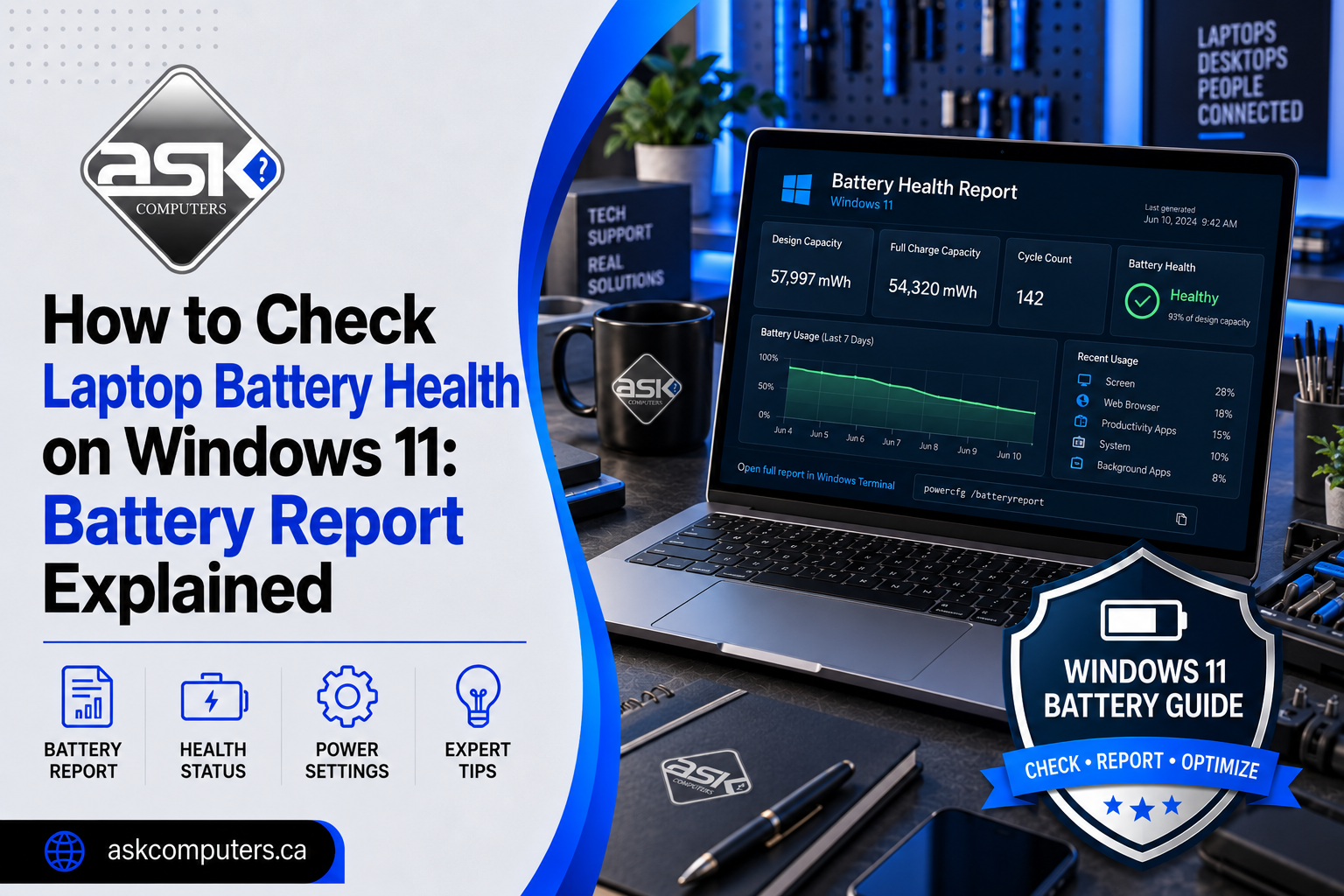
How to Check Laptop Battery Health on Windows 11: Battery Report Explained
Your laptop may show 100% charged and still have a worn-out battery.
That is because the battery percentage shown in Windows tells you how much charge is currently available. It does not tell you how much capacity the battery has lost since it was new.
Fortunately, Windows 11 includes a built-in tool that provides considerably more information.
The Windows battery report can show the battery’s original design capacity, current full-charge capacity, usage history, estimated runtime, and other information that can help determine whether poor battery life is caused by normal settings or an aging battery.
This guide explains how to check laptop battery health on Windows 11, how to generate a battery report, what the numbers mean, and when battery replacement may be the better solution.
Quick Answer: How Do You Check Battery Health on Windows 11?
To perform a laptop battery health check:
- Open Start.
- Search for Command Prompt.
- Right-click it and choose Run as administrator.
- Type:
powercfg /batteryreport
- Press Enter.
- Windows will display the location where the HTML battery report was saved.
- Open the file in your browser.
- Compare Design Capacity with Full Charge Capacity.
Microsoft officially documents powercfg /batteryreport as the built-in Windows 11 method for generating detailed battery information.
The most important number is usually Full Charge Capacity compared with Design Capacity.
What Does Laptop Battery Health Mean?
Laptop battery health describes how much usable capacity your battery still has compared with the capacity it was designed to hold when new.
A new battery might have:
Design Capacity: 60,000 mWh
When new, its Full Charge Capacity might also be close to 60,000 mWh.
After hundreds of charge cycles, that same battery might report:
Full Charge Capacity: 42,000 mWh
The battery still works.
It simply cannot hold as much energy as it once did.
That reduced capacity is why an older laptop may show 100% charge but run for only two or three hours when it originally lasted considerably longer.
Why Laptop Batteries Lose Capacity
Most modern laptops use lithium-ion or similar rechargeable battery technology.
Battery degradation happens gradually because of:
- Charge and discharge cycles.
- Heat.
- Age.
- High-voltage exposure.
- Heavy workloads.
- Frequent deep discharge.
- Long periods at very high or very low charge levels.
Battery wear is normal.
The important question is whether the battery has degraded enough to affect how you use your laptop.
How to Generate a Windows 11 Battery Report
Windows does not make the full report particularly visible through the normal Settings menu, but creating one takes less than a minute.
Step 1: Open Command Prompt as Administrator
Select the Windows Start button.
Type:
Command Prompt
Right-click the result and select:
Run as administrator
Select Yes if Windows asks for permission.
Step 2: Run the Battery Report Command
Enter:
powercfg /batteryreport
Then press Enter.
Windows generates an HTML report containing information about your laptop battery.
Microsoft’s Powercfg documentation confirms that /batteryreport creates a report containing battery usage characteristics.
Step 3: Find the Battery Report
After the command runs, Windows displays the path where the report was saved.
It will usually be an HTML file named something similar to:
battery-report.html
Copy the path or navigate to it using File Explorer.
Step 4: Open the Report
Double-click the HTML file.
It should open in your normal web browser.
You will now see several sections containing information about your battery and recent power usage.
How to Read a Windows Battery Report
A battery report can look technical at first.
You do not need to understand every table.
For most laptop owners, five areas matter most:
- Installed Batteries
- Design Capacity
- Full Charge Capacity
- Battery Capacity History
- Battery Life Estimates
Let’s break them down.
Installed Batteries
Near the top of the report, Windows provides information about the installed battery.
Depending on the laptop, you may see:
- Battery name.
- Manufacturer.
- Serial number.
- Chemistry.
- Design capacity.
- Full charge capacity.
The two numbers that matter most are Design Capacity and Full Charge Capacity.
What Is Design Capacity?
Design Capacity is approximately how much energy the battery was designed to hold when new.
Think of it as the battery’s original fuel-tank size.
For example:
Design Capacity: 55,000 mWh
That is your baseline.
What Is Full Charge Capacity?
Full Charge Capacity represents approximately how much energy the battery can currently hold at a full charge.
Example:
Design Capacity: 55,000 mWh
Full Charge Capacity: 44,000 mWh
The battery can now store around 80% of its original rated capacity.
That difference is the clearest basic indication of battery wear.
How to Calculate Laptop Battery Health Percentage
You can estimate battery health with this formula:
Full Charge Capacity ÷ Design Capacity × 100
Using the previous example:
44,000 ÷ 55,000 × 100 = 80%
Your estimated battery health would therefore be approximately 80%.
Here is a simple reference:
| Approximate Battery Health | What It Usually Means |
|---|---|
| 90–100% | Very good |
| 80–89% | Normal wear |
| 70–79% | Noticeable degradation |
| 60–69% | Significant capacity loss |
| Below 60% | Replacement may be worth considering |
These percentages are practical guidelines, not universal manufacturer replacement rules.
A battery can also develop other faults even when reported capacity appears acceptable.
Battery Capacity History
The Battery Capacity History section helps you understand whether deterioration happened gradually or recently.
It tracks Full Charge Capacity against Design Capacity over time.
Suppose your history shows:
- January: 51,000 mWh
- March: 49,000 mWh
- May: 46,000 mWh
- July: 41,000 mWh
That suggests continuing degradation.
If capacity suddenly drops dramatically, the issue may deserve closer investigation.
Recent Usage
The Recent Usage section shows periods when your device was:
- Active.
- Suspended.
- Connected to power.
- Running on battery.
This is useful if you are troubleshooting unexpected battery drain.
For example, your laptop may be losing significant charge while you believe it is asleep.
That could suggest a power-management, software, driver, or sleep-state issue rather than simple battery wear.
Battery Usage
Battery Usage provides additional information about discharge periods.
Look for unusually fast drops.
For example:
80% → 35% within one hour
might be normal if you were gaming or rendering video.
It would be far less normal if the laptop was sitting mostly idle.
Context matters.
Battery Life Estimates
This section compares estimated runtime based on the battery’s current capacity with runtime based on its original design capacity.
It can help answer an important question:
How much usable battery life have I actually lost?
For example:
At Design Capacity: 8 hours
At Full Charge Capacity: 5 hours
The report is showing that battery degradation may have reduced potential runtime substantially.
Actual runtime still varies depending on brightness, applications, processor use, network activity, peripherals, background tasks, and power settings.
What Is a Good Battery Health Percentage for a Laptop?
There is no single number that applies to every laptop.
However, if Full Charge Capacity remains above roughly 80% of Design Capacity and your laptop still lasts long enough for your needs, battery replacement may not be necessary.
Once capacity begins falling substantially below that level, you may notice:
- Shorter runtime.
- Faster percentage drops.
- More frequent charging.
- Unexpected shutdowns.
- Poor performance away from the charger.
The real replacement decision should be based on both the report and how the laptop behaves.
Why Does My Laptop Battery Drain Fast Even With Good Battery Health?
A healthy battery does not guarantee long runtime.
Battery drain can also be caused by software and usage.
Common causes include:
High Screen Brightness
The display is one of the largest power consumers in many laptops.
Reducing brightness can noticeably improve runtime.
Background Applications
Cloud synchronization, browsers, communication applications, indexing, updates, and security software can consume power in the background.
High CPU or GPU Usage
Gaming, video editing, AI workloads, coding tools, virtual machines, and creative software can dramatically increase energy use.
Too Many Browser Tabs
Modern browsers can consume substantial memory and processor resources when many demanding tabs are open.
Windows Power Settings
Your laptop may be configured for maximum performance rather than energy efficiency.
Driver or Firmware Issues
Poorly behaving drivers can prevent the computer from entering efficient power states.
External Devices
USB drives, external storage, lighting, docks, and other accessories can draw power.
That is why a Windows 11 battery report should be treated as a diagnostic tool rather than the only test.
Why Does My Laptop Shut Down Before Reaching 0%?
A laptop that suddenly switches off at 20%, 30%, or even 40% may have:
- A heavily degraded battery.
- Poor battery calibration.
- Damaged cells.
- Power-management problems.
- Battery-controller issues.
In these cases, the percentage displayed by Windows may no longer accurately represent the battery’s actual usable charge.
If the problem continues after software troubleshooting, professional battery diagnostics may be appropriate.
Does Keeping a Laptop Plugged In Damage the Battery?
Modern laptops include charging controls designed to protect batteries, so leaving a laptop plugged in does not automatically destroy the battery.
However, battery aging can accelerate under certain conditions, particularly when a device remains very hot or spends extended periods at high charge states.
For laptops that support battery conservation or smart-charging modes, enabling those features can be useful when the computer spends most of its time connected to power.
Warning Signs Your Laptop Battery May Need Replacement
A battery report is useful, but physical symptoms matter too.
Consider professional inspection if you notice:
- Battery runtime has become extremely short.
- The laptop shuts down unexpectedly.
- Battery percentage changes suddenly.
- The laptop only works while connected to a charger.
- The battery refuses to charge.
- Windows no longer detects the battery correctly.
- The case or trackpad appears to be lifting.
- The battery appears swollen.
Microsoft advises users to stop using a device if an expanding battery pushes beyond the mechanical enclosure and to avoid puncturing or placing pressure on a swollen battery.
A swollen lithium battery should not be treated as a normal DIY battery issue.
Battery Problem or Charger Problem?
Poor charging does not always mean your battery is defective.
The issue could involve:
- AC adapter.
- USB-C charger.
- Charging cable.
- Charging port.
- DC jack.
- Motherboard power circuit.
- Firmware.
- Battery.
For example, if your laptop runs normally from the battery but does not charge reliably, the charging system may deserve investigation.
If the laptop charges to 100% but dies rapidly after being unplugged, battery degradation becomes more likely.
Professional diagnostics help separate these issues before unnecessary parts are replaced.
How to Improve Laptop Battery Life in Windows 11
Try these steps before assuming your battery requires replacement:
- Lower display brightness.
- Enable Energy Saver.
- Close unused background applications.
- Reduce unnecessary startup programs.
- Install Windows and manufacturer updates.
- Keep ventilation openings clear.
- Avoid excessive heat.
- Disconnect unnecessary USB accessories.
- Use manufacturer battery-conservation features where available.
- Check Task Manager for unusually high CPU usage.
If runtime remains poor, generate another battery report and compare Full Charge Capacity with Design Capacity.
Can a Laptop Battery Be Repaired?
Individual lithium battery packs generally are not “repaired” in the same way as a charging port or motherboard.
When the battery cells have degraded or the pack is defective, battery replacement is normally the appropriate solution.
However, a technician should first confirm that the battery itself is responsible.
A charging problem can otherwise lead someone to replace a perfectly usable battery.
When Should You Get Professional Laptop Battery Diagnostics?
Consider professional service when:
- Battery health has dropped significantly.
- Runtime is disrupting daily use.
- The laptop dies without warning.
- The battery is not detected.
- The laptop will not charge.
- You suspect battery swelling.
- A replacement battery is difficult to access.
- You are unsure whether the fault involves the battery, charger, port, or motherboard.
ASK Computers provides laptop repair and laptop battery replacement in Toronto, including diagnostics for charging problems, battery degradation, ports, hardware faults, and related power issues.
The goal should always be to identify the real cause before replacing components.
Frequently Asked Questions
How do I check laptop battery health on Windows 11?
Run Command Prompt as administrator, enter powercfg /batteryreport, open the generated HTML report, and compare Full Charge Capacity with Design Capacity.
What command checks laptop battery health?
Use:powercfg /batteryreport
Windows generates an HTML report containing battery capacity and usage information.
How do I calculate my laptop battery health?
Divide Full Charge Capacity by Design Capacity and multiply by 100.
For example, 40,000 mWh ÷ 50,000 mWh × 100 = approximately 80% battery health.
Is 80% laptop battery health bad?
Not necessarily. It indicates noticeable wear, but the battery may still be perfectly usable. Replacement becomes more useful when reduced capacity begins interfering with normal use.
Why is my laptop battery health dropping?
Rechargeable batteries naturally lose capacity due to age, charge cycles, temperature, and usage conditions.
Can Windows 11 show battery health?
Yes. Windows 11 can generate a detailed battery report using the built-in powercfg /batteryreport command.
Should I replace my laptop battery at 70% health?
Replacement is worth considering if 70% capacity is causing poor runtime or other symptoms. Capacity alone should not be the only factor.
Can ASK Computers replace laptop batteries in Toronto?
ASK Computers provides laptop diagnostics and repair services in Toronto and can determine whether short runtime is caused by the battery or another charging or hardware issue.