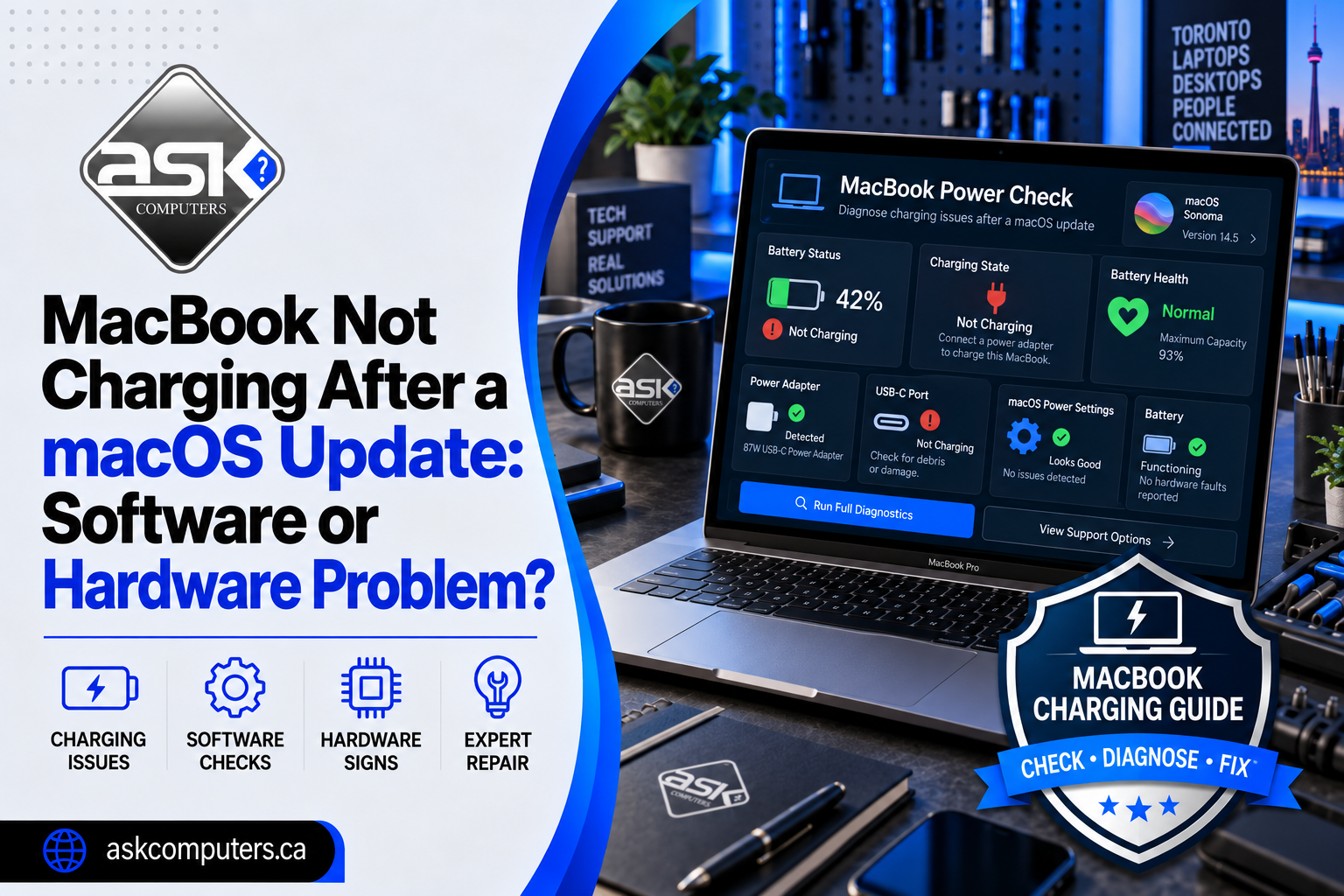
You update macOS, restart your MacBook, and suddenly notice that the battery isn’t charging. The charger is connected, but the percentage stays the same. Sometimes, the battery icon even displays “Not Charging.”
If your MacBook is not charging after a macOS update, the timing may suggest a software problem. However, a worn battery, damaged charging cable, or faulty USB-C port can produce similar symptoms.
The good news is that you don’t need to replace your battery immediately. A few basic checks can help you understand what’s happening.
This guide explains the common causes of MacBook charging problems, what you can safely try at home, and when professional repair makes sense.
Why Is My MacBook Not Charging After a macOS Update?
A MacBook may stop charging normally because of battery management settings, charging accessories, software issues, or hardware problems.
An update can also change how battery information appears, making an existing issue more noticeable.
The most common possibilities include:
- Optimized Battery Charging delaying a full charge
- A charging limit set in Battery settings
- A temporary software or power management issue
- An adapter that delivers insufficient power
- A worn or damaged charging cable
- A battery with reduced capacity
- A damaged USB-C or MagSafe charging connection
- A fault in the MacBook’s internal charging components
A charging issue appearing after an update does not automatically mean the update caused it.
Start by checking whether your MacBook recognizes its charger and what message appears in the battery menu.
Software vs Hardware: How Can You Tell the Difference?
The symptoms often provide useful clues.
| What you notice | Possible explanation | First action |
|---|---|---|
| Battery stops near 80% | Optimized charging or charge limit | Check Battery settings |
| “Not Charging” while plugged in | Battery management or insufficient power | Check charger wattage |
| Charging works after restarting | Temporary software issue | Monitor the problem |
| Charging works with another cable | Faulty cable or adapter | Replace the faulty accessory |
| Charging only works at certain angles | Cable or port damage | Stop stressing the connection |
| Battery shows “Service Recommended” | Reduced battery health | Arrange a battery assessment |
| MacBook won’t turn on or charge | Power, battery, or internal hardware fault | Seek professional diagnosis |
These signs are only starting points. A technician may need to test the charging system before confirming the cause.
1. Restart Your MacBook After the Update
A restart is one of the simplest ways to troubleshoot a temporary MacBook charging problem.
After updating macOS, your laptop may continue running background tasks. Restarting can resolve certain temporary software issues.
To restart:
- Save your open work.
- Select the Apple menu.
- Click Restart.
- Wait for your MacBook to start again.
- Reconnect the charger and check the battery status.
If charging returns to normal, keep an eye on the battery over the next few days.
If the issue continues, move to the next step.
2. Check Optimized Battery Charging and Charge Limits
One reason your MacBook battery is not charging may be a feature designed to protect its long-term health.
Optimized Battery Charging learns your charging habits and can delay charging beyond 80% when it expects the laptop to remain plugged in.
Supported MacBooks may also have a configurable charge limit.
To check your settings:
- Open the Apple menu.
- Select System Settings.
- Click Battery.
- Review the available charging and battery health options.
- Check whether a charging limit or optimized charging feature is active.
If you see “Charging On Hold,” your MacBook may be managing the charge intentionally.
Depending on your macOS version, you may have the option to select “Charge to Full Now.”
Do not assume the battery is faulty simply because it stops charging before 100%.
3. Inspect Your Charging Cable and Adapter
A damaged charger can cause symptoms that resemble a macOS software issue.
Check the power adapter, charging cable, and connector for visible damage.
Look for:
- Frayed or damaged cable insulation
- Loose USB-C connections
- Bent connectors
- Unusual heat or discoloration
- Problems that appear when the cable moves
If you notice damage, stop using the affected accessory.
Try a compatible, known-working charger with enough power for your MacBook model.
Some third-party chargers or USB-C hubs may not deliver enough wattage, especially when your MacBook is performing demanding tasks.
If your laptop begins charging with a different adapter, the problem may be with the original charging equipment rather than macOS.
4. Check Your MacBook’s Battery Health
MacBook batteries lose capacity as they age.
A macOS update doesn’t necessarily damage the battery, but a battery that was already deteriorating may begin showing more noticeable symptoms.
To review battery health:
- Open System Settings.
- Select Battery.
- Look for Battery Health or Battery Information.
- Check the condition message.
If your MacBook displays “Service Recommended,” the battery may need professional attention.
Other warning signs include rapid battery drain, unexpected shutdowns, or poor battery life.
You can learn more about professional MacBook battery replacement in Toronto if your battery condition suggests a hardware problem.
Avoid replacing the battery without confirming that it’s responsible for the charging issue.
5. Try an SMC Reset on Compatible Intel MacBooks
The System Management Controller, or SMC, manages several power-related functions on Intel-based Macs.
On some Intel MacBooks, resetting the SMC may help resolve unusual battery or charging behavior.
However, the correct procedure depends on the model and whether it includes Apple’s T2 security chip.
Important: Apple silicon MacBooks do not use the same manual SMC reset procedure. Restarting the Mac is the appropriate first step.
For an Intel MacBook, identify the exact model before following Apple’s official SMC reset instructions.
Avoid using random keyboard combinations from outdated tutorials because they may not apply to your laptop.
If the MacBook still won’t charge after the appropriate troubleshooting steps, a hardware inspection may be necessary.
6. Look for Additional macOS Updates
Software updates sometimes include fixes that improve compatibility, stability, or communication with power accessories.
If your MacBook can still run on battery power, check whether another update is available.
Go to:
System Settings → General → Software Update
Install only updates that are compatible with your device.
Before updating, back up important files and make sure you have a reliable power source.
If your laptop cannot charge and the battery is nearly empty, avoid starting a major installation until the power problem is resolved.
An interrupted installation can create additional problems.
7. Run Apple Diagnostics
Apple Diagnostics can help identify certain hardware problems affecting your MacBook.
The steps differ between Apple silicon and Intel models.
For Apple silicon Macs, the process generally begins by shutting down the computer and holding the power button until startup options appear. You can then follow the diagnostic instructions for your model.
Intel MacBooks use a different startup procedure.
Apple Diagnostics may identify a hardware concern, but it cannot confirm every possible charging fault.
If the test doesn’t report an issue, your MacBook may still have a faulty adapter, charging port, battery, or internal component.
Professional diagnostics can help narrow down the problem.
8. When Is a MacBook Charging Problem a Hardware Issue?
A hardware problem becomes more likely when the MacBook fails to charge with multiple compatible, working chargers or shows other physical warning signs.
Examples include:
Damaged USB-C or MagSafe connection
If charging repeatedly disconnects or the port feels loose, the connection may require inspection.
Battery failure
A worn battery may stop holding a charge or cause unexpected shutdowns.
Internal charging circuit damage
Liquid exposure, electrical faults, or damaged components can prevent power from reaching the battery.
Physical damage
A previous drop or spill may affect charging even if the outside of the MacBook appears normal.
If you notice battery swelling, a burning smell, smoke, or excessive heat, stop using and charging the device and seek professional help.
Avoid opening the MacBook or attempting board-level repairs without suitable training.
9. Where to Get MacBook Charging Repair in Toronto
If you’ve tried basic troubleshooting and your MacBook still won’t charge, the next step is a professional diagnosis.
At ASK Computers, technicians provide MacBook repair services in Toronto for common battery, charging, and hardware problems.
A proper evaluation can help identify whether your MacBook needs a battery replacement, charging port service, or more detailed hardware repair.
ASK Computers also offers MacBook Pro repair services for customers dealing with power, battery, and other hardware issues.
Visit the Toronto store at 111 Front St E, Toronto, ON M5A 4S5, or call (416) 862-9595 to discuss your MacBook charging issue.
Frequently Asked Questions
Can a macOS update cause my MacBook to stop charging?
Software problems can affect charging behavior, but the timing alone doesn’t prove the update caused the issue.
Why is my MacBook plugged in but not charging?
Possible reasons include optimized charging, insufficient adapter power, a worn battery, or damaged charging hardware.
Why does my MacBook stop charging at 80%?
Optimized Battery Charging, charge limits, or temperature protection may pause charging before the battery reaches 100%.
Should I replace my MacBook battery after an update?
Not without a diagnosis. Check battery health, charging settings, and power accessories before considering replacement.
Can a faulty USB-C port prevent MacBook charging?
Yes. A damaged or unreliable charging port may interrupt power delivery and require professional inspection.
Final Thoughts
If your MacBook is not charging after a macOS update, begin with the simplest checks.
Restart the laptop, review Battery settings, inspect the charger, and check battery health.
If charging still fails, don’t assume another software update will solve the problem. Your MacBook may need a professional hardware evaluation.
For dependable Mac repair in Toronto, contact ASK Computers.
Call (416) 862-9595 to discuss your MacBook Air or MacBook Pro charging problem.