
A laptop charging port that is loose, bent or dead can almost always be fixed, and the fix usually means replacing the port or re-soldering it to the motherboard, not replacing the whole laptop. The catch is that the port is soldered onto the board, so the job calls for micro-soldering skill. That is the work we do in our Toronto shop, where we repair laptops and fix damaged boards instead of swapping them, and where estimates are free and walk-ins are welcome.
This guide helps you work out whether the port is really the problem, what a proper repair involves, what affects the price, and how to confirm the fix has held.
- If the laptop charges only when you hold the plug at an angle, or the charging light flickers, the port is the likely culprit. A bad charger or battery can look the same, so confirm before you pay for a repair.
- Most laptop charging ports (DC jacks) are soldered to the motherboard, so replacing one is micro-soldering work, not a simple part swap.
- Stop wiggling the plug. Repeated force can crack solder joints or lift pads from the board, which turns a small repair into a board-level one.
- Repair is usually far cheaper than a new laptop. We give free estimates and take walk-ins in Toronto.
- Phone ports are a different job: they are usually a small module, and lint or moisture is the common cause.
Table of Contents
- What the charging port does, and why it fails
- Is it the port, the charger or the battery?
- Can a laptop charging port be repaired?
- What to do while you wait for the repair
- How much does a laptop charging port repair cost?
- What a proper charging port repair looks like
- How to tell the repair worked
- What about a phone charging port?
- MacBook charging problems
- Get your laptop’s charging port fixed in Toronto
- FAQ
- Sources
What the charging port does, and why it fails
The charging port (also called the power jack or DC jack) is the socket your charger plugs into. It passes power from the adapter to the motherboard and the battery. On many laptops it is a small component soldered directly onto the main board. On others, especially newer thin models, it is a USB-C port that carries power and data together.
Ports fail for ordinary, physical reasons:
- Strain on the cable. A laptop on a couch arm or a cramped desk, with the charger cable tugged sideways, puts leverage on a small socket.
- Worn or cracked solder joints. Each plug-in flexes the joints that hold the port to the board. Over time they crack and the connection becomes intermittent.
- Bent or damaged contacts inside the port. The centre pin or the contacts stop gripping the plug.
- Debris or liquid. Dust, lint and spills can stop the plug from seating or corrode the contacts.
- A damaged cable or adapter. Sometimes the port is innocent, which is why diagnosis comes first.
Is it the port, the charger or the battery?
Paying for a port repair when the charger is dead is a waste, and replacing a charger when the port is cracked fixes nothing. A few checks separate the three.
Signs that point to the port
- The plug feels loose, or moves in the socket.
- The laptop charges only at a certain angle or when you press on the cable.
- The charging light flickers on and off as the cable shifts.
- The plug does not fit, or there is visible damage, bent metal or a burnt smell near the socket.
- You can see the socket itself moving when the plug moves.
If the socket moves with the plug, the mounting has usually come away from the board. That is the classic sign of a failed DC jack.
Signs that point to the charger
The charger or cable is the more likely fault if the laptop does not charge at all, whatever angle you try, and the cable shows kinks, fraying or heat damage near the plug. Asus support guidance notes that a charging light that stays off while the charger makes a repeating ticking sound most likely means the charger itself is defective. If you have access to a matching charger, trying it is the quickest way to rule the original one in or out.
Signs that point to the battery
If the laptop runs when plugged in but drops dead the moment you unplug it, or the battery percentage jumps around, the battery may be worn. Asus notes that laptop batteries are designed for roughly 500 full charge cycles, so an older machine with heavy daily use may simply have used its battery up.
A quick check for USB-C laptops
If your laptop charges over USB-C, the cable is a frequent culprit. Dell’s support documentation says that if a new USB-C cable doesn’t help, you should connect the laptop’s own power adapter to the same USB-C port. If the laptop still doesn’t charge with the power adapter, the port may need service. Try the other USB-C ports too, if your laptop has more than one that supports charging.
These checks take a few minutes and need no tools. If they point to the port, stop there and bring the laptop in. Opening the case yourself risks the battery, the ribbon cables and the board.
Can a laptop charging port be repaired?
Yes. In most cases the port is repairable, and in most cases it is worth repairing. What the repair involves depends on how the port is damaged.
| Fault | What it usually means | Typical repair |
|---|---|---|
| Plug is loose, charging cuts in and out | Cracked solder joints under the port | Clean the old solder and re-solder the joints |
| Port is broken, bent or has snapped off | Damaged housing or contacts | Remove the port and solder in a new one |
| Port wobbles and the board looks damaged | Pads or traces lifted from the board | Board-level micro-soldering to rebuild the connection, then fit the port |
| USB-C port is dead, bent or won’t hold the plug | Damaged port, sometimes a related power circuit fault | Replace the port, then test the charging circuit |
| Charging stops after a spill | Corrosion on the port or the board | Clean the corrosion, then repair or replace what it damaged |
Why it takes micro-soldering
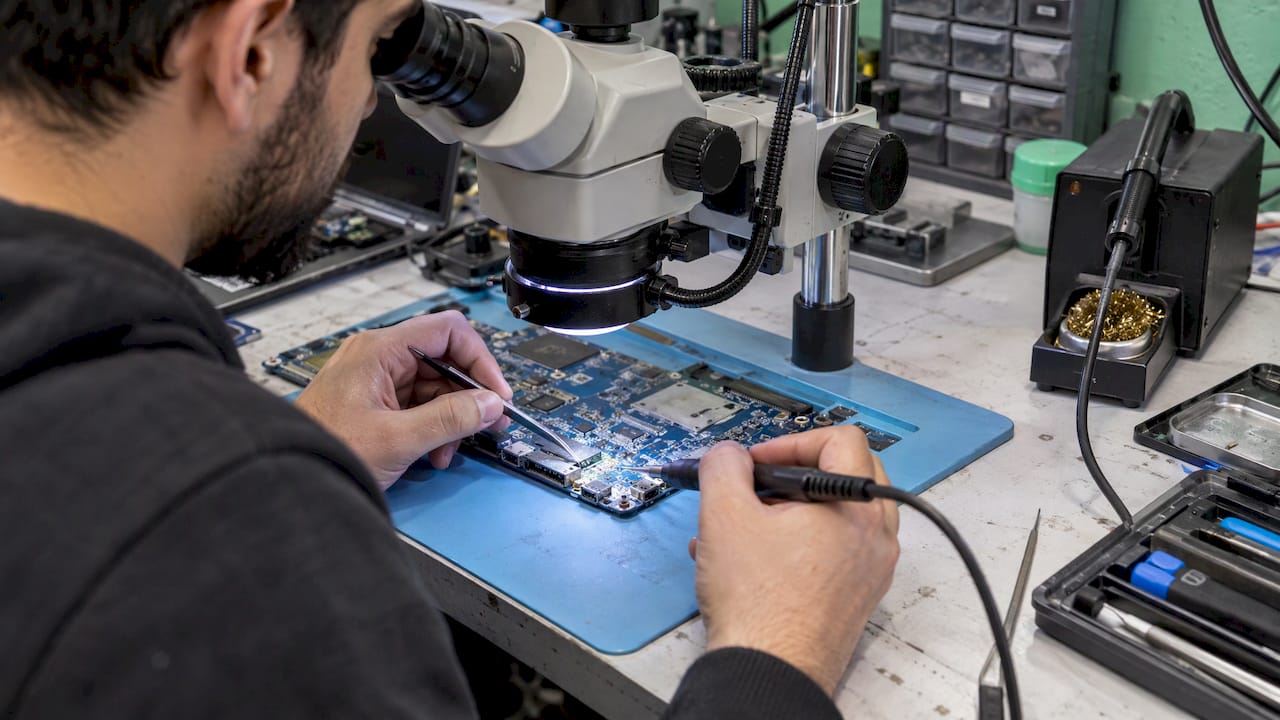
Asus guidance says that a faulty or damaged power port can be replaced, but that the job typically requires micro-soldering and is best left to a technician. The reason is practical. The port’s legs pass through the board and connect to fine copper traces. Heat applied for too long, or in the wrong place, lifts those pads or damages the layers of the board around them. Once that happens, the port is no longer the only problem.
Laptop Charging Port Fix: Signs, Causes and Repair in Toronto
This is where a shop with board-level skills matters. Micro-soldering on logic boards is one of the repairs we offer, and it is the same skill that keeps a damaged board in service rather than condemned. For a laptop whose port has ripped pads away with it, that is the difference between repairing the machine and being told to buy a new one. If you want to see how we think about board-level work, our guide to laptop motherboard repair in Toronto explains what to look for.
Diagnose first, then repair
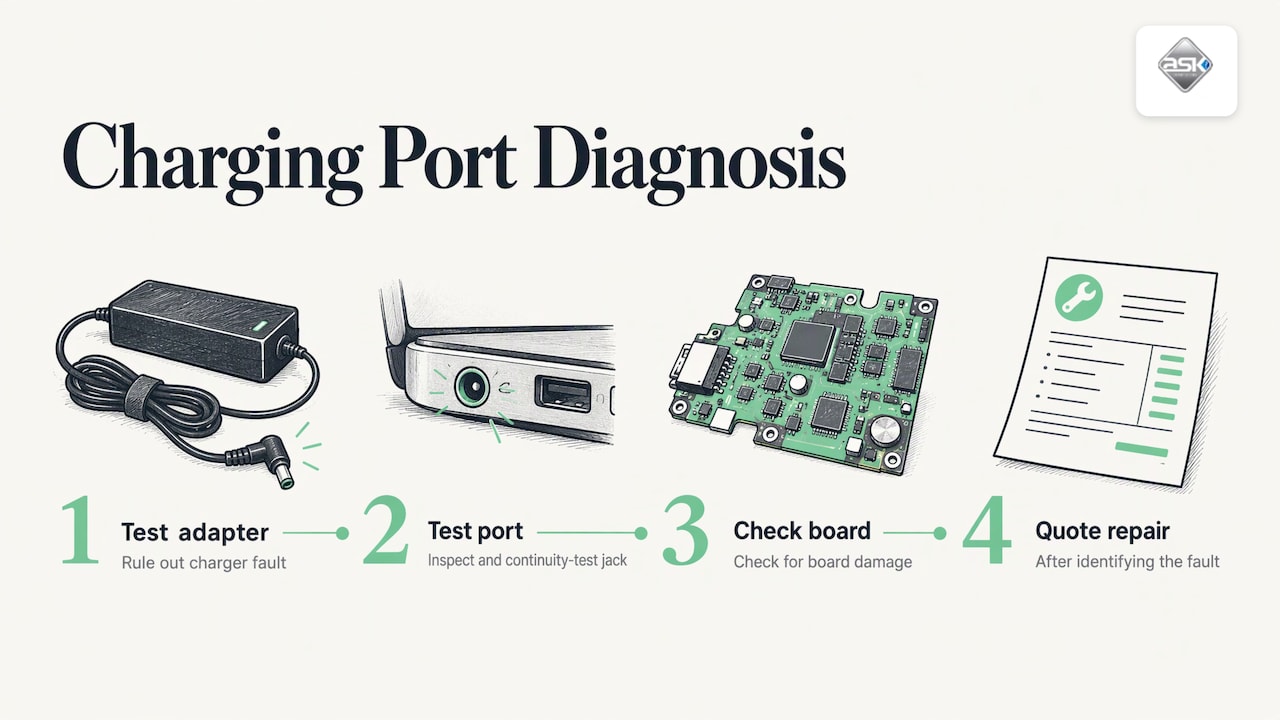
One field note on DC jack repairs makes a useful point: many people assume a dead motherboard or a dead charger when the jack is the actual fault, and inspecting and continuity-testing the jack first saves hours of chasing the wrong problem. A technician works the same way: test the adapter, test the port, check the board, and only then quote the repair. That is why a free estimate is a sensible first step: you learn what is actually wrong before you spend anything.
What to do while you wait for the repair
The goal is to stop a repairable fault from getting worse.
- Stop using the plug as a lever. If you have to hold the cable at an angle to charge, every attempt strains the joints further.
- Do not keep forcing a plug that won’t seat. A bent pin or debris can damage the port’s contacts.
- Unplug and shut down if you notice heat, a burning smell, sparks or discolouration at the socket. Do not keep charging. Bring the laptop in.
- Back up what matters. If the battery is low and the laptop can’t charge, get your files off while it still starts. If it won’t power on, we also handle data recovery and transfer.
- Don’t open the case to poke at the port. Soldering on a live or badly prepared board can lift pads and make the repair larger and costlier.
If liquid has reached the port, power the laptop down straight away and do not plug the charger in. Liquid and power together is what turns a corroded connector into a damaged board.
How much does a laptop charging port repair cost?
There is no single price, and any figure that ignores the specific laptop and damage is a guess. The cost depends on a handful of things:
- How the port is damaged. Re-soldering cracked joints is a smaller job than replacing a snapped-off port. Rebuilding lifted pads takes more time and skill.
- The laptop model. Some laptops use a standard DC jack. Others use a USB-C port or a proprietary connector that has to be sourced for that exact model. Access matters too: on some machines the board is easy to reach, on others a lot has to come apart first.
- Whether there is related damage. A spill, a short or an old failed repair can add work around the port.
- Whether the charger or battery also needs attention. Sometimes the port is fine and the cheaper fix is a new adapter.
We do not publish a flat price for this repair because it varies with the points above. What we do offer is a free estimate. Bring the laptop and the charger that goes with it, and you will have a quote based on the actual fault before anything is done.
For context on the decision, compare the quote against what a replacement laptop with similar specs would cost you. A port repair on a laptop that otherwise works well is normally a fraction of that. If your laptop is old and has other problems, our guide on upgrading your laptop versus repairing it walks through how to weigh the two.
What a proper charging port repair looks like
It helps to know what good work involves, so you can recognise it.
- Test the adapter and cable to confirm the power source is sound.
- Inspect the port and the board for cracked joints, bent contacts, lifted pads, corrosion and signs of heat.
- Open the laptop and disconnect the battery before any work on the board.
- Remove the old port or re-flow the joints, using controlled heat so the board is not damaged.
- Clean the pads and fit the new port, or rebuild any damaged traces with micro-soldering first.
- Reassemble and test charging with a known good adapter.
The part most likely to go wrong is step 4 and 5, where heat and pad damage decide whether the repair is clean. That is where board-level experience pays off, and it is the reason we handle this work in the shop with our own technicians, who bring over 15 years of repair experience to the bench.
How to tell the repair worked
Before you leave the shop or go back to using the laptop for work, run through these checks:
- The plug sits firmly and does not wobble or shift when you touch the cable.
- Charging starts straight away and does not cut out when you move the cable gently.
- The charging light and the battery indicator agree, and the percentage climbs over several minutes.
- The port and the plug stay cool. A little warmth from a charging laptop is normal. Heat at the socket is not.
- It charges with the laptop on and off.
- There is no burning smell, crackling or discolouration at the port.
If anything on that list is off, tell the technician while you are still there so it can be checked again. We would rather see a laptop twice than have you leave with a fault that returns.
What about a phone charging port?
Phones are a separate case, and the fix is different. On most phones the charging port sits on a small flexible cable or module near the bottom edge, so replacing it does not normally mean soldering onto the main board, although damage to the board around it can. The most common reasons a phone stops charging are lint packed into the port, a worn cable, or moisture. A port that was submerged or splashed needs attention quickly because corrosion spreads.
If your phone charges slowly or only at certain angles, our guide on when a slow-charging iPhone needs professional repair covers the signs. If water is involved, read how to get water out of an iPhone charging port before you plug anything in.
We repair iPhones and other cell phones in store and carry many iPhone parts in stock, which helps keep the turnaround quick. See our iPhone repair and cell phone repair pages for what we cover.
MacBook charging problems
MacBooks use USB-C ports for charging, and a MacBook that stops charging is not always a port fault. Software, the cable and the charger all play a part. If the trouble began after an update, start with our guide to a MacBook not charging after a macOS update. If the port is damaged or the problem sits on the board, a board-level repair is the route. See signs your MacBook needs a logic board repair and our MacBook repair page.
Get your laptop’s charging port fixed in Toronto
If your laptop only charges at an angle, or not at all, bring it in with its charger. We will check whether the port, the charger or something on the board is the problem, and give you a free estimate before any work starts. Our technicians repair charging ports, liquid damage and logic boards with micro-soldering, so a damaged board is repaired instead of replaced. We accept walk-ins, and students and businesses with one machine or many are welcome.

See our laptop repair and computer and laptop repair pages for the full list of what we do.
FAQ
Is a laptop charging port repairable?
Yes, in nearly all cases. A loose port usually needs its solder joints redone, and a broken one is removed and replaced. Because the port is soldered to the motherboard, the work calls for micro-soldering, and a damaged board needs board-level repair as well.
Can a loose charging port be fixed?
Yes. A port that wobbles or charges only at an angle typically has cracked solder joints or a worn mounting. A technician re-solders it or fits a new port. The sooner it is fixed, the less likely it is that the board underneath is damaged.
How do I know it’s the port and not the charger?
If the laptop charges when you hold the plug at a certain angle, or the socket moves with the plug, the port is the likely cause. If it never charges and the cable is frayed or the adapter makes a ticking sound with the light off, suspect the charger. On a USB-C laptop, try the laptop’s own power adapter in the same port, as Dell’s support guidance suggests.
How much does it cost to fix a laptop charging port?
The price depends on the laptop model, the type of port and how badly the port or board is damaged. We give a free estimate after looking at your laptop, so you know the cost before agreeing to any work.
Is it still safe to charge while I wait for repair?
Only if the plug seats firmly and nothing gets hot. If you smell burning, see sparks or notice the socket heating up, unplug the charger, shut the laptop down and bring it in. Avoid bending the cable to find a charging position, because that strains the port further.
Sources
- Dell Support: USB-C cable damage causing charging or display issues
- Asus support: Diagnose and replace a faulty charger
- Knowledge base: Toshiba Satellite P205 DC jack diagnosis and repair